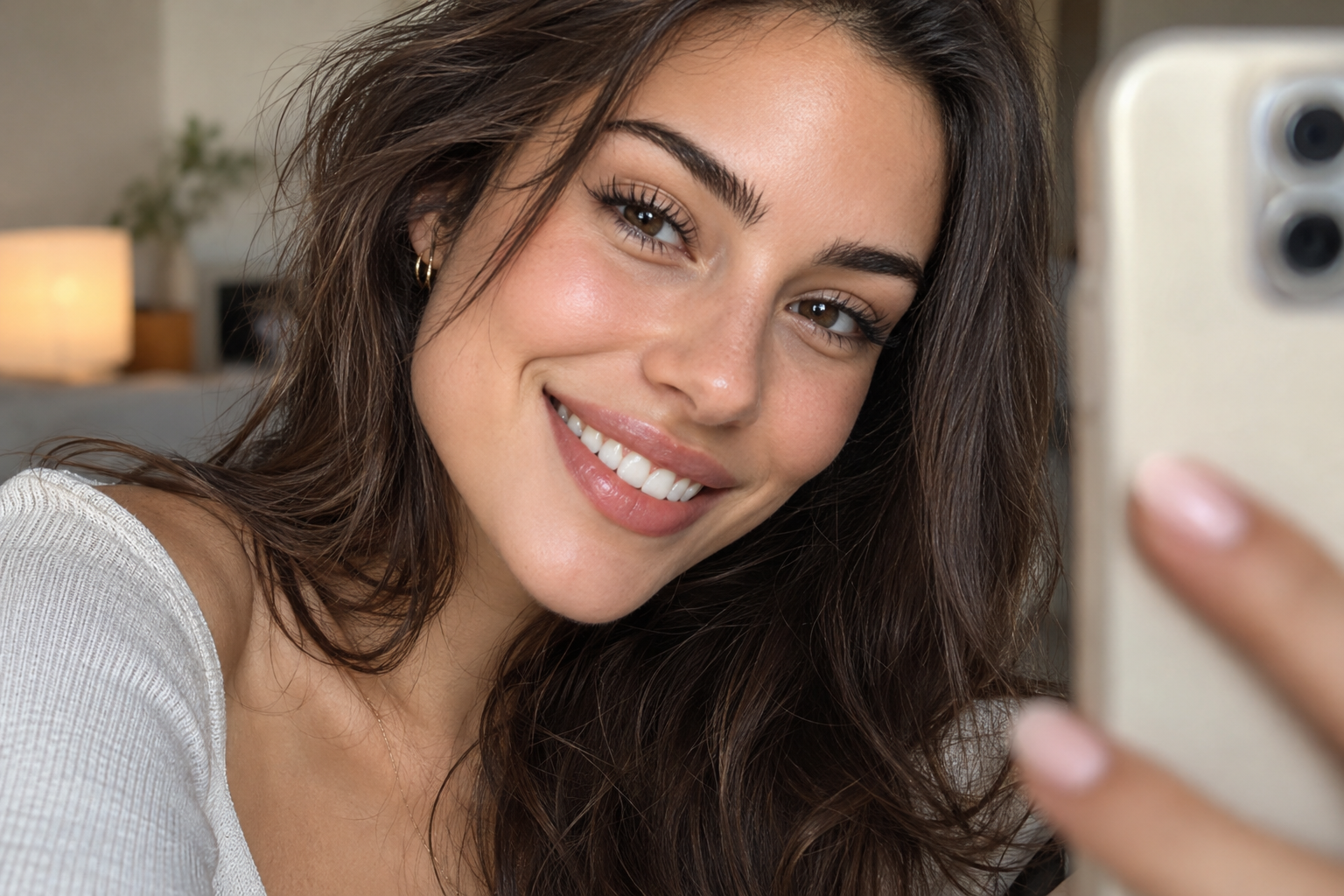
Your smile felt easy until someone said, “Hold it.” Now you’re watching yourself on the iPhone screen, keeping your mouth in position, and waiting for the shutter.
For a comfortable, photo ready smile, arrange the shot before smiling, give the camera some distance, then let your expression develop just before capture. A small closed-lip smile is as valid an option as a broad, teeth-showing one.
Quick answer: Start with the lens near eye level, relax your mouth and shoulders, and breathe out normally. Smile near the moment of capture rather than throughout the setup. Use a timer or a short Burst to give yourself options.
Set the phone position before your expression
Find comfortable, even light, such as indirect window light or open shade. Frame the photo with your face at rest. There’s no reason to keep a grin going while someone decides whether your earrings are in the shot.
Begin with the lens around eye height, then try a little higher or lower if you prefer. Keep the position comfortable rather than stretching your neck to meet a supposedly ideal angle.
Give the camera breathing room
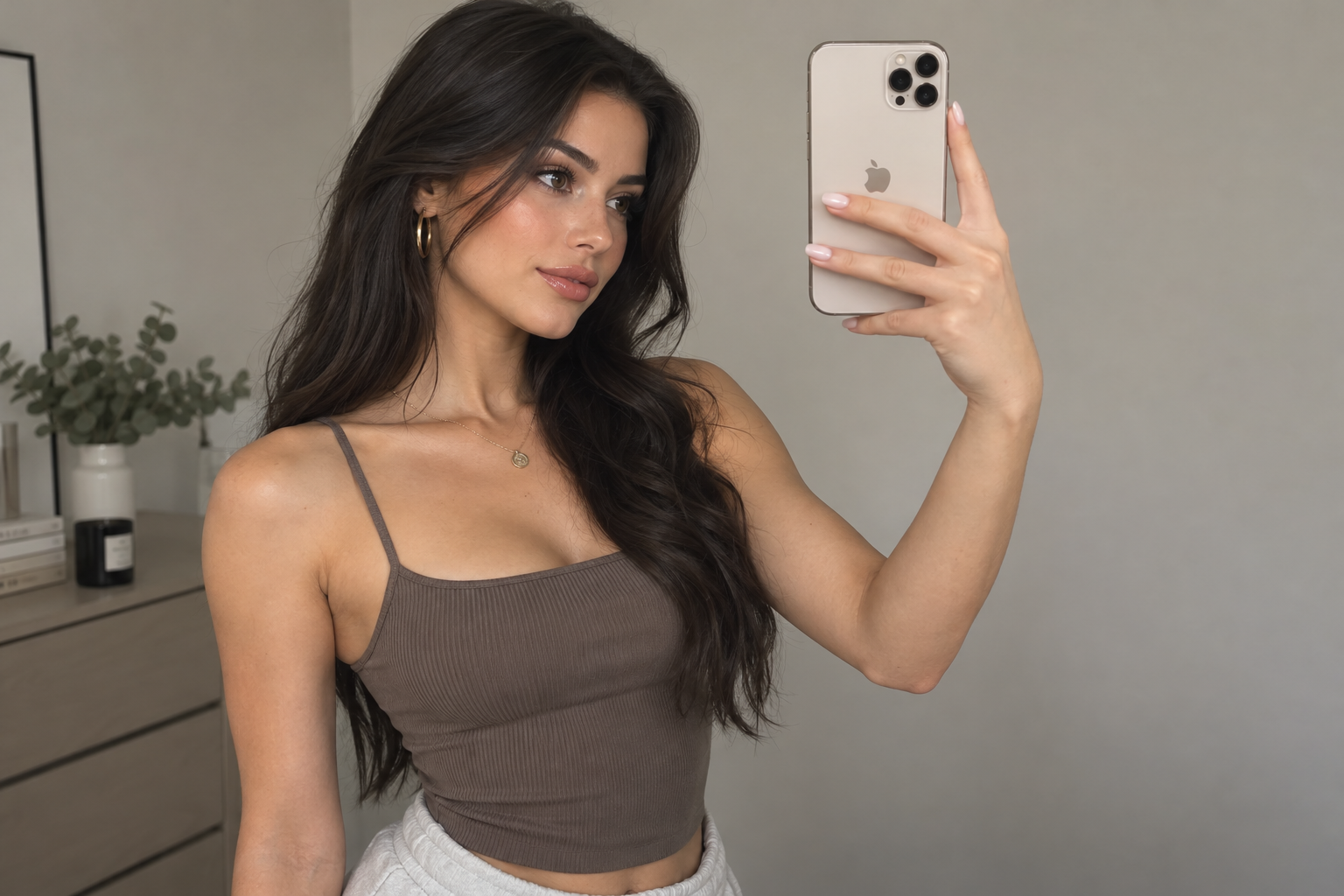
For a handheld selfie, extend the phone to a comfortable reach without locking your arm or raising your shoulder. Avoid pulling it close simply to fill the screen.
If a friend is taking the photo, ask them to try standing about five feet away, leaving space around you. A securely supported phone works for a solo version.
Distance matters because it changes how facial proportions are projected. A mathematical study of close-distance photographs illustrates this effect; it wasn’t a test of smiles or current iPhones. The useful point is that an unfamiliar close-up can be about camera placement, not your expression.
You can crop a more distant photo afterward, though heavy cropping sacrifices detail. Tapping a zoom button while staying close doesn’t change the camera-to-face distance.
Build a photo ready smile without holding it
Treat these cues as a small experiment, not a pose you have to master.
Let your face return to rest
Release the smile completely between attempts. Let your lips settle comfortably and lower your shoulders if you’ve lifted them.
Breathe out normally. You don’t need to push your jaw forward, stretch your mouth, or hold your tongue in a particular position.
Start with the expression you actually like

Try a small closed-lip smile first, or let your lips part gently if that feels more familiar. Allow a broader smile if it comes comfortably, rather than stretching the corners farther because the camera is out.
If chatting with your friend brings out an expression you like, keep the conversation going. You don’t have to manufacture a laugh, narrow your eyes, or show a prescribed amount of teeth.
Don’t continue an expression that hurts. If discomfort regularly makes smiling difficult, that deserves dental or medical advice rather than another posing trick.
Look toward the lens when you’re ready
Check your framing on the screen, then shift your gaze toward the actual camera lens for the picture. Watching your own mouth can turn the moment into a running critique.
Looking away is fine for an intentional off-camera portrait. The lens cue simply helps when you want to appear to meet the viewer’s gaze.
Choose a capture method that gives you time
The aim is to photograph your smile developing, not to see how long you can maintain it.
Taking photos solo: use the timer
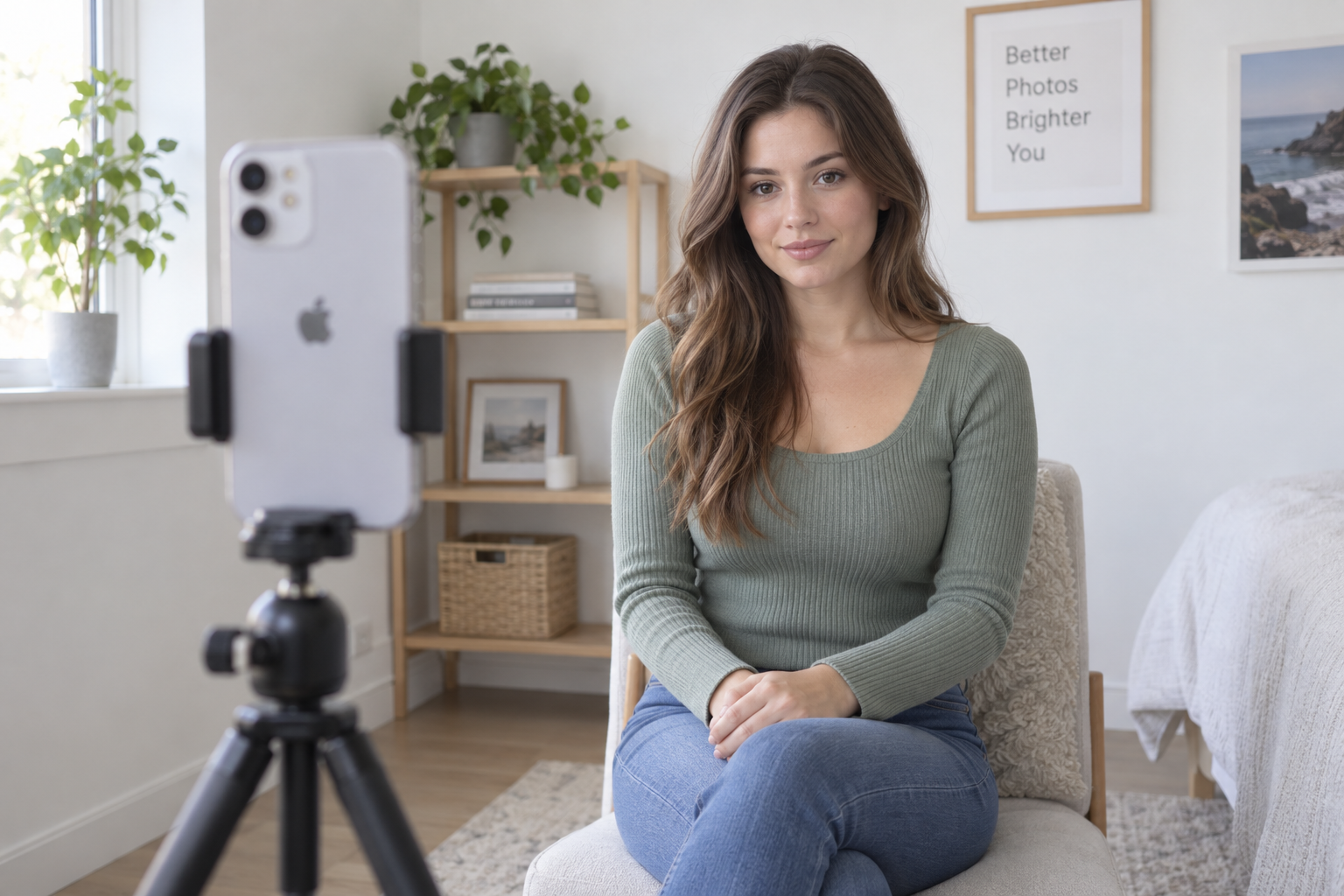
Secure the phone, compose your shot, and open the Camera controls to find Timer. Choose an available delay, such as 10 seconds, so you have time to settle.
Apple’s camera-tools guide explains the timer controls, which can vary with software. During the countdown, stay at rest until near capture, then let your smile form. If the timing feels awkward, reset rather than holding the expression through another countdown.
With a friend: ask for a short Burst
Ask your photographer to capture a brief sequence while you move from resting expression into a smile. That gives you several moments to choose from.
For Burst mode, Apple instructs users to swipe the shutter button left and lift their finger to stop. Simply holding the shutter isn’t a universal Burst shortcut. Keep each sequence short, then relax before another attempt.
If the saved selfie still looks unfamiliar
Check whether the difference is expression or orientation. A saved selfie may look reversed compared with the preview, making a familiar expression feel unexpectedly different.
Under Settings > Camera > Mirror Front Camera, you can choose to save selfies in the orientation shown in the preview, as Apple explains. This changes orientation, not facial proportions or symmetry.
For your next attempt, change just one thing: move the phone farther away or smile later. Take a few frames, choose the expression that feels like you, and put the camera down before the review becomes a full facial audit.